
Below are detailed instructions for joining Second Haven, both in Minecraft and in Discord.
To join this community, you can participate in Discord only, Minecraft only, or both. The benefit of having both is the ability to communicate in Discord (voice, video, or screensharing) while playing in Minecraft.
Would you like personal, one-on-one help? We’d be so happy to help you join our community! Just add your email here, and we’ll reach out soon.
Minecraft
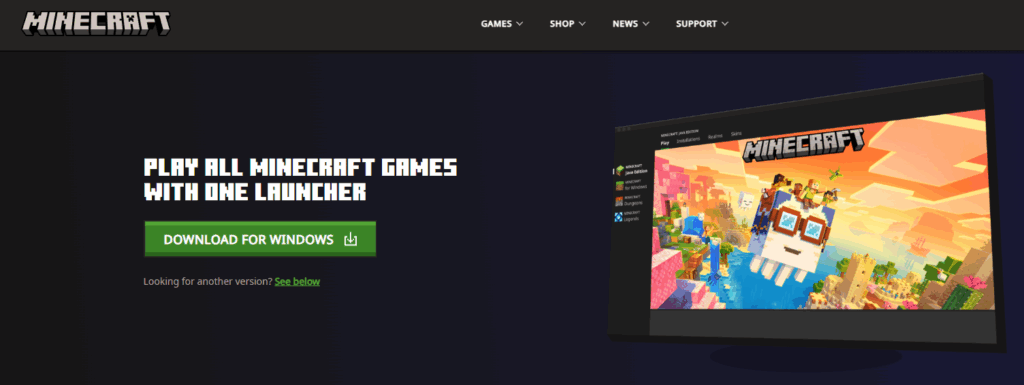
If you haven’t played before, start by downloading the app at https://www.minecraft.net/en-us/download.
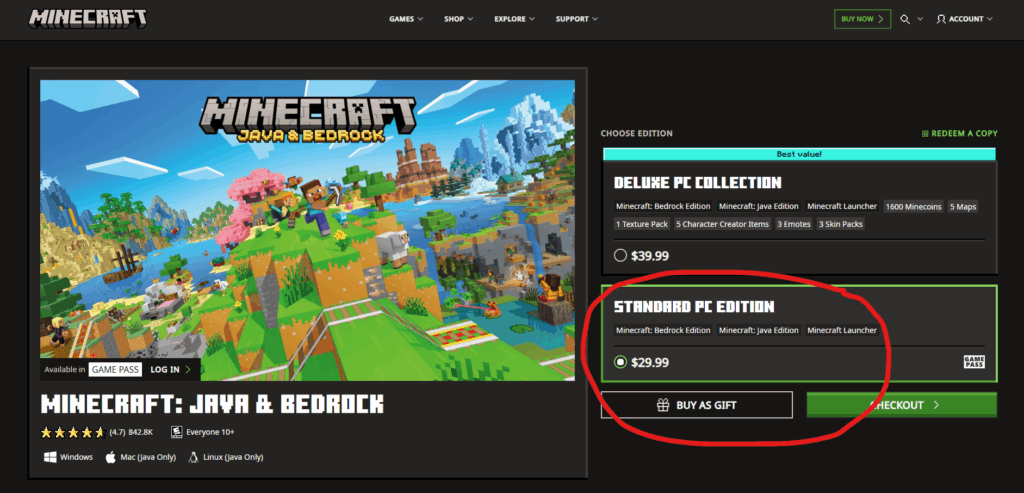
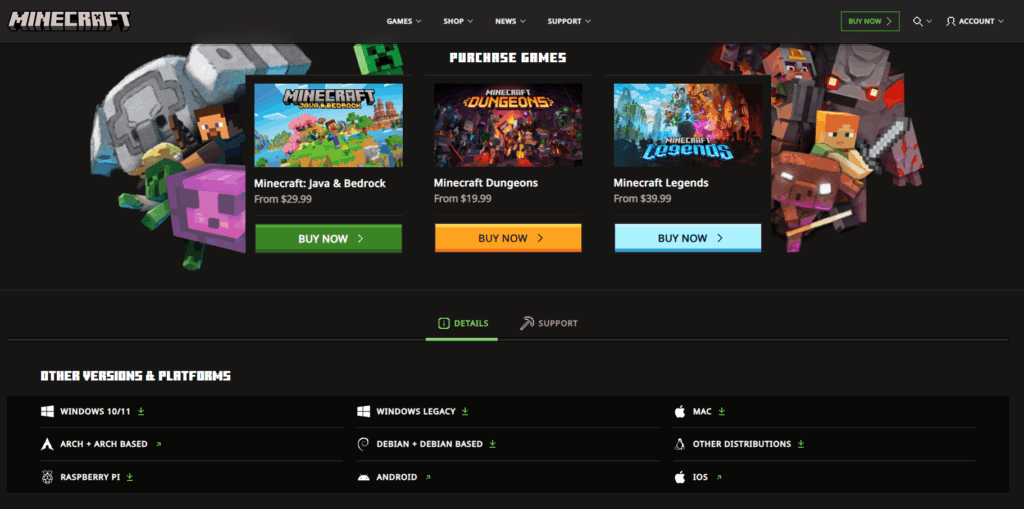
The Minecraft game (this includes both Java and Bedrock editions) is currently $29.99. This is a one-time payment. After this, you own it forever. If you need help purchasing the game, please contact us.
I strongly recommend getting the Standard PC Edition. You DO NOT need Minecoins… like ever.
When you purchase Minecraft, you should be prompted to create an account. You will choose a username and password. This username is the name other people will see inside the Second Haven Minecraft world.
Get Whitelisted
Here is an IMPORTANT step! You will need to provide your username to Second Haven before you can join the Minecraft server.
You can do this by
- Completing our Get Whitelisted form here OR
- Joining the Second Haven Discord server.
To join our Discord server, click on this link in your browser: https://discord.gg/D79DTBMSW9
When joining the Discord platform for the first time, you may be prompted to download the app to your phone or desktop. This is optional.
When joining the Second Haven Discord specifically, you will be prompted to answer two questions from our admin team: What brings you to Second Haven, and what is your Minecraft username? When you provide your username here, we will add you to our whitelist.
Launch Minecraft
Once you have Minecraft installed on your computer (or game console), and you have been added to our Second Haven whitelist, launch Minecraft and sign in.
You should see this screen below. Visit the Minecraft help center if you have any trouble: https://help.minecraft.net/hc/en-us.
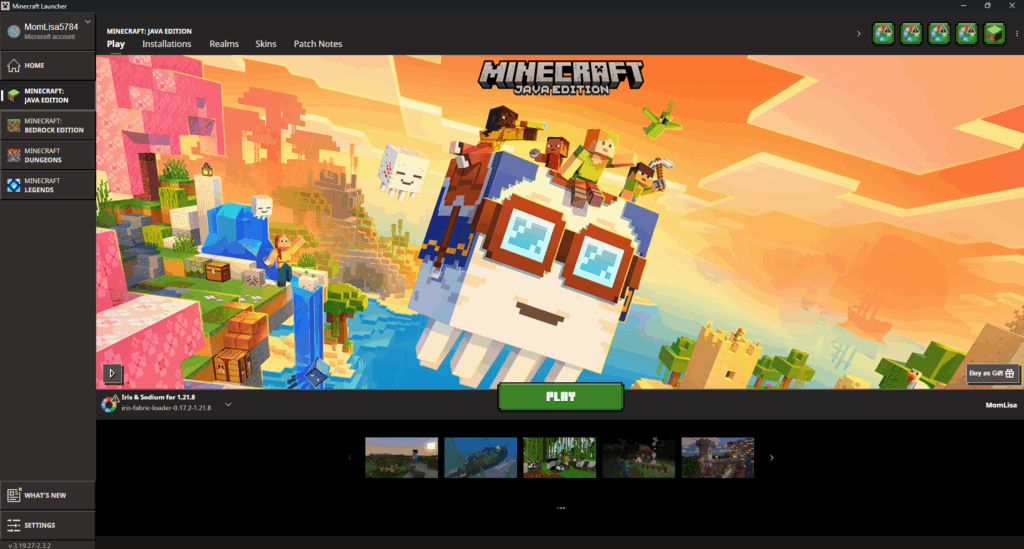
In this guide, I’ll show you how to play the Java Edition. Before pressing Play, select MINECRAFT: JAVA EDITION in the left sidebar.
Learn more about the difference between Java and Bedrock in this video: Which is better? (Two quick points: If you want beautiful lighting, Java is a must. Modifications that are free in Java cost “coins” in Bedrock.) Second Haven supports crossplay between Java and Bedrock. You can join using either edition.
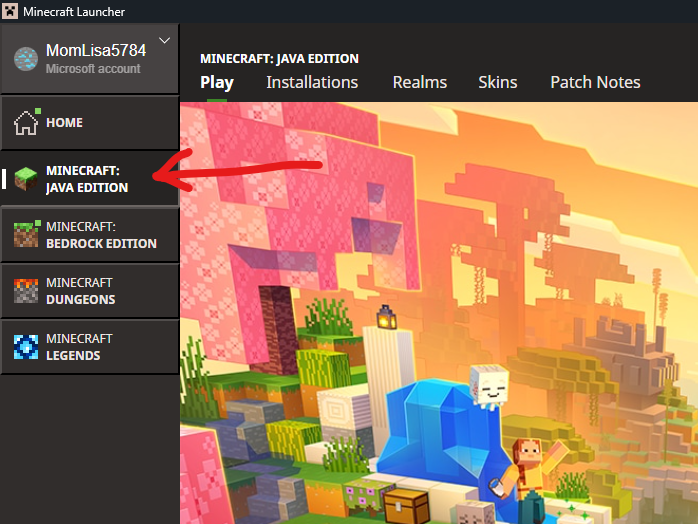
After selecting Java Edition, you can click Play.
A word about versions: Second Haven is presently built on version 1.21.8, but you can join using the “Latest Release.” If you click on “Installations,” you can select another version and join using that version. But you can ignore this if you like.
Join Our World
Once you have launched Minecraft and clicked Play, select Multiplayer.
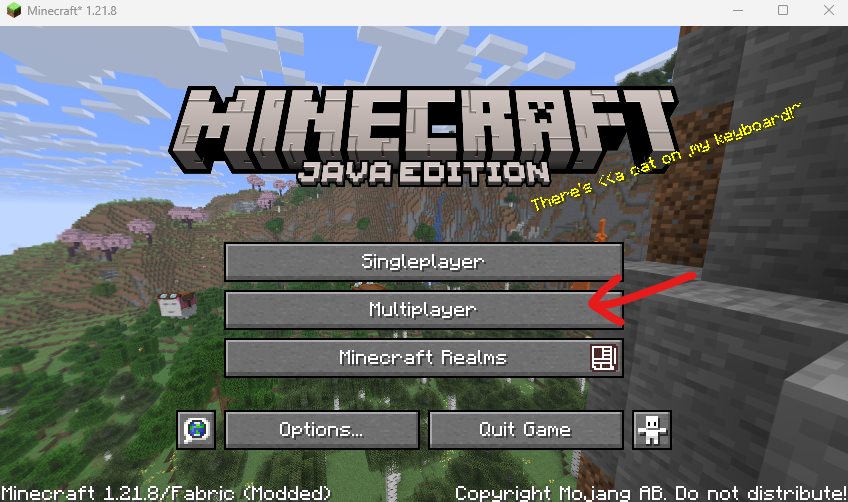
Click Add Server at the bottom of your screen.

Enter the server name and address for Second Haven.
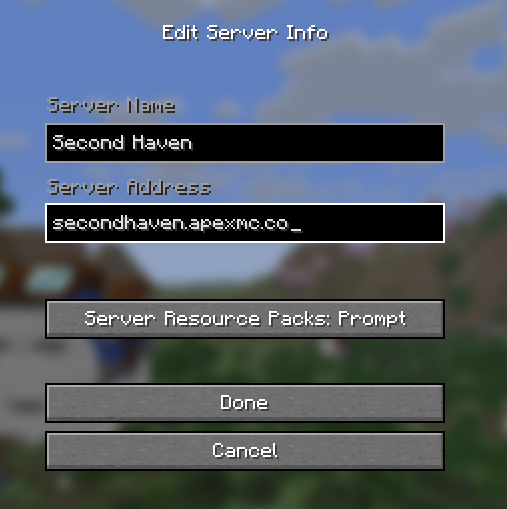
For the Server Address, you can use either of the following:
secondhaven.apexmc.co
209.192.186.87:25702
Then click Done.
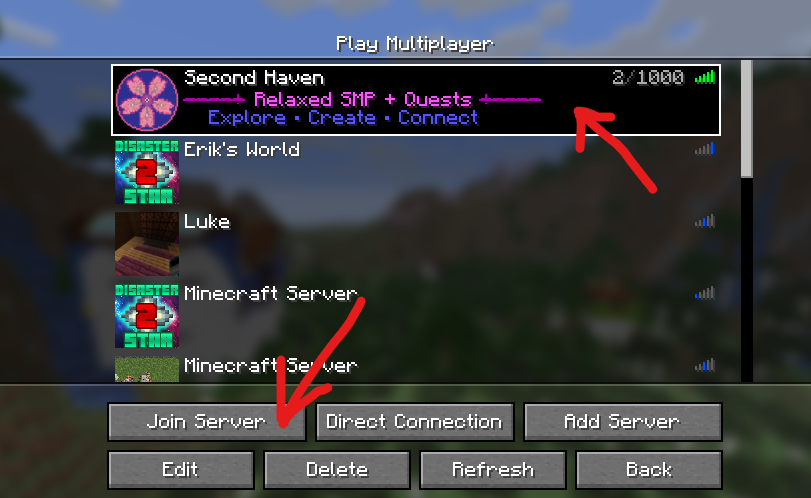
Back on the Multiplayer screen, select the Second Haven server. Then click on Join Server.
Welcome!
We are so happy you made it!
If you need help learning how to move around in Minecraft, just type this command as soon as you appear in Second Haven:
/warp beginner
You might be wondering, “Where do I type this?” Don’t worry. Just type the forward slash symbol ( / ) and then the words “warp beginner” and hit Enter.
This will transport you to a training area. Move your mouse to look in different directions. Click the buttons on your mouse to click on the Guides. (You must be close enough to a Guide for this to work.) The Guides will speak in the chat bar.
You will enter our world in a special location called the “spawn point.” If you want to return to this starting point at any time, just type the following:
/spawn
This will take you back to the “spawn point.”
When you type the forward slash, a bar opens up at the bottom of your screen where you can continue typing. This is the chat bar. You will use this same bar to chat with others in Second Haven.
When you want to chat (instead of typing a command like /spawn), you just press the letter T on your keyboard to open the chat bar then continue typing.
Learn more commands here: Using Commands in Second Haven
NEXT: Visit our Getting Started page for YouTube tutorials.